How do I import delivery orders from Excel or CSV without mixing up the dates?
Updated
Short answer
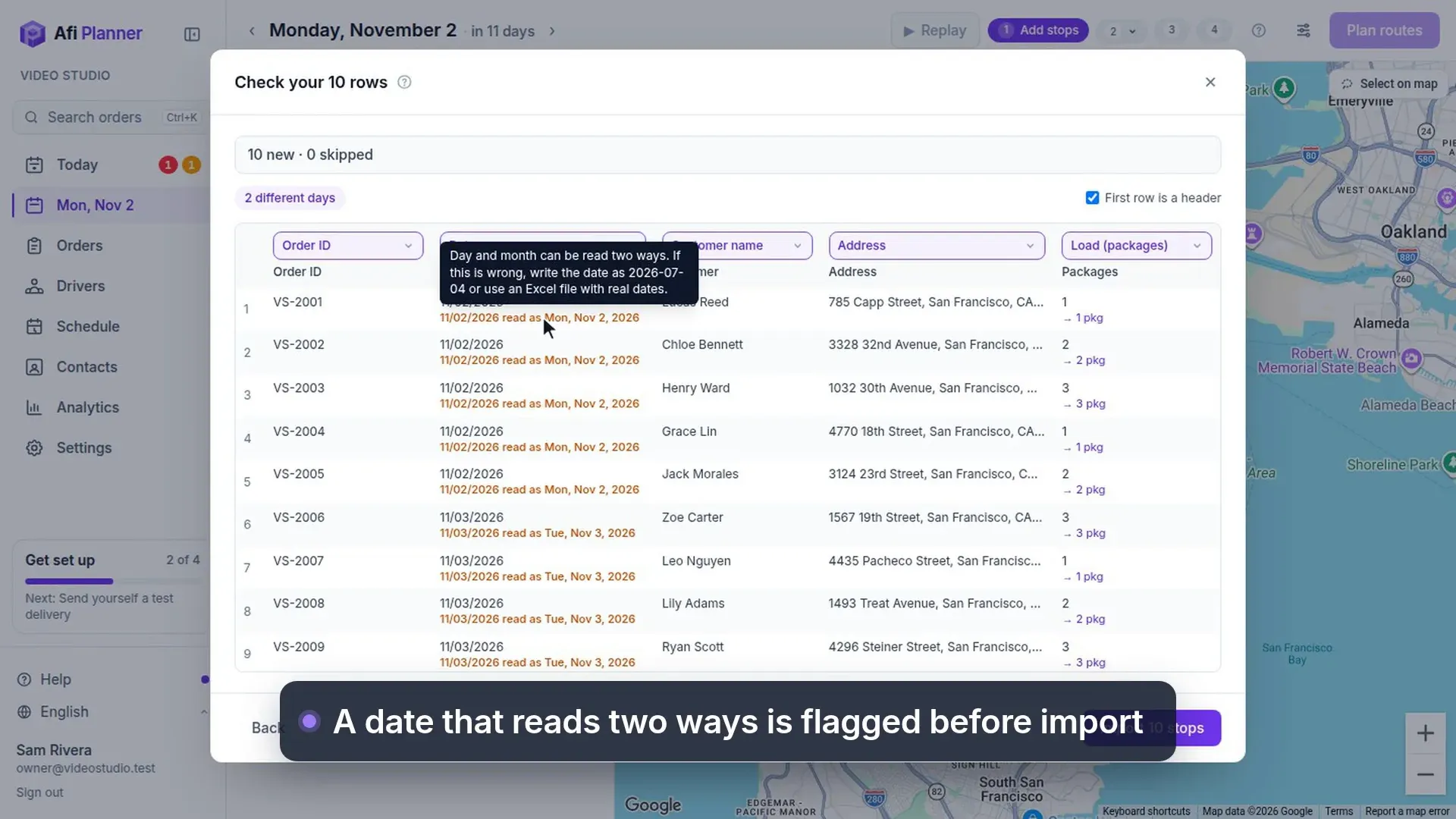
Paste rows from Excel or Google Sheets, or drop in an .xlsx or CSV file, and Afi Planner shows how it read every cell before anything is imported. Dates follow your company’s country (month first in the US, day first elsewhere), and a date that could be read two ways, such as 11/03/2026, is shown in amber with the day it was read as. Real Excel date cells and dates written as 2026-11-03 have only one reading.
What this video shows
Paste orders from a spreadsheet as they are: columns are recognized and dates that read two ways are flagged.
- Bring in orders from a spreadsheet.
- Orders in a spreadsheet?
- Copy the rows, and paste them in, just as they are.
- Columns are recognized for you.
- Dates that read two ways are flagged first.
- Then import. Each order goes to its own day.
How it works in Afi Planner
See every date before you import
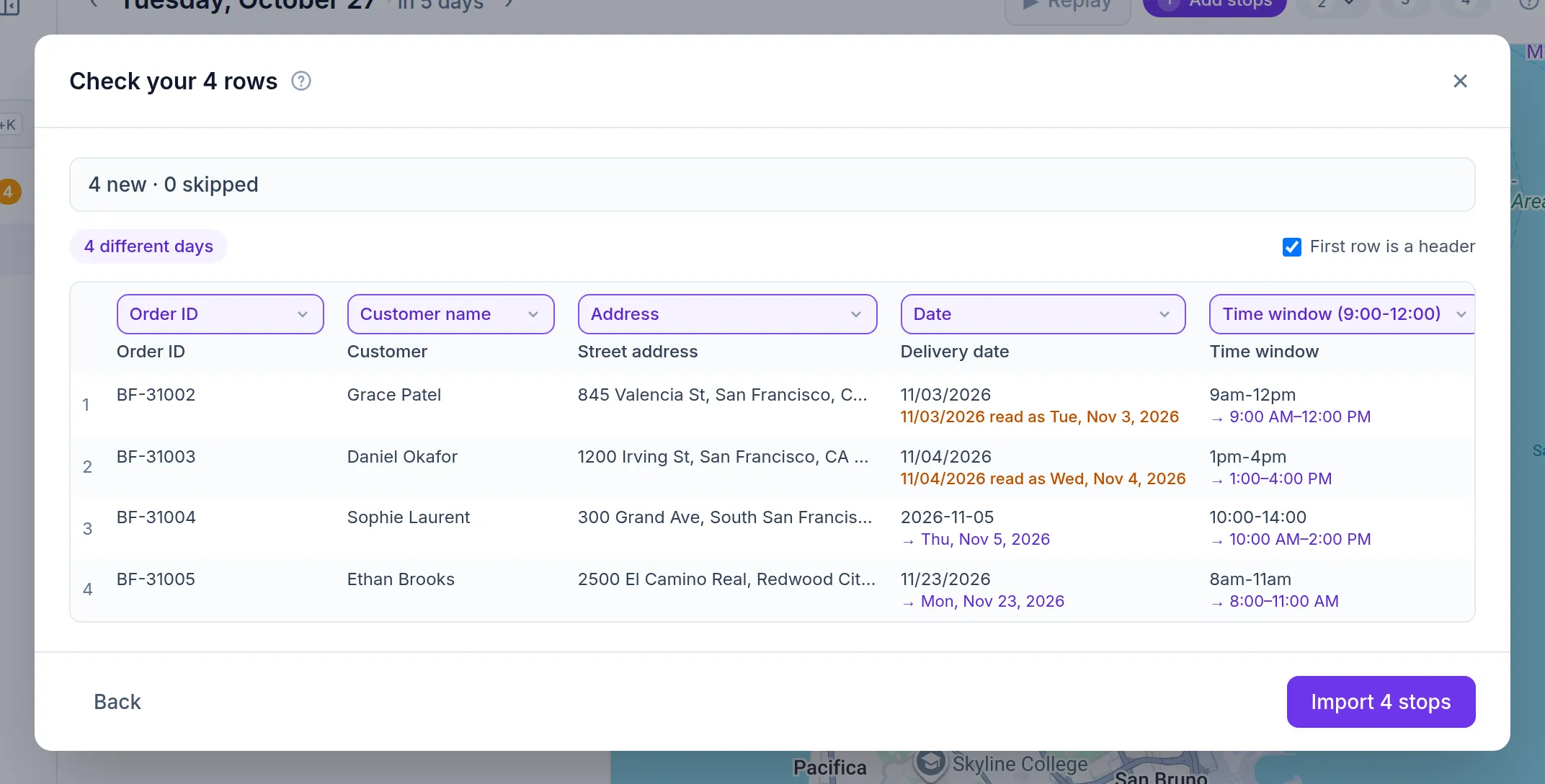
Under each cell the preview shows how it was read: “11/03/2026 read as Tue, Nov 3, 2026” in amber when day and month could swap, and a plain reading when they can’t (11/23/2026 can only be November 23). Times are read the same way, so “9am-12pm” shows as 9:00 AM–12:00 PM before it becomes a time window.
- Dates with English month names (“Mar 4, 2026”), and a date written with its time
- Times with seconds or written as 0930
- If a reading is wrong, write the date as 2026-07-04 or use an Excel file with real dates
Your columns, many days, no duplicates
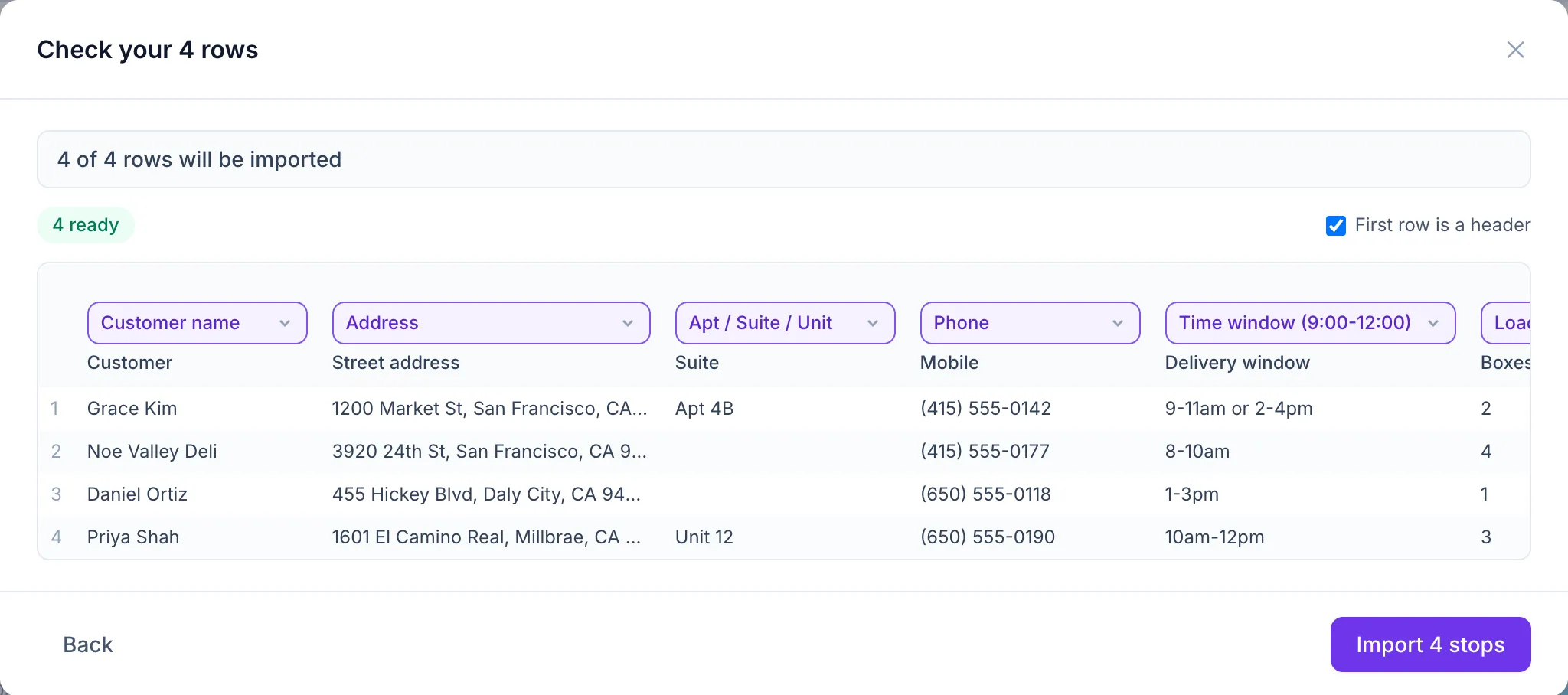
Common column names in English, Spanish, Vietnamese and Swedish are matched automatically, and Afi Planner remembers any column you match yourself. Add a date column and the orders are spread over the right days.
- The same order imported twice is updated, not doubled
- Delivered orders are never overwritten
- Addresses get a quality check, and vague ones are flagged before a driver gets lost
Try it in the live demo
A fictional delivery company in the middle of its day. Read-only, no sign-up.
Open the live demo →Feature
Import & addresses
Paste orders from Excel or Google Sheets, or drop in a CSV. Column names are recognized in four languages, addresses are checked and a pin is fixed in seconds.
7 steps · 4 min read
How to import delivery stops from Excel, CSV or Google Sheets
Frequently asked questions
What file types can I import?
An .xlsx, .csv or .txt file, or rows pasted straight from Excel or Google Sheets. An old .xls file is refused with a hint to save it as .xlsx first.
Can one file hold several days?
Yes. Add a date column and the orders go to their own days; the preview says how many days the file covers.
Our company is outside the US. Is 03/04 March 4?
No. Outside the US dates are read day first, so 03/04 is April 3; the preview shows the day it was read as, in amber, before you import.
More answers
Import your own order file
Paste or upload your spreadsheet and check every row before it is saved, on a 3-month free trial, no credit card.
Questions about your setup? Talk to sales